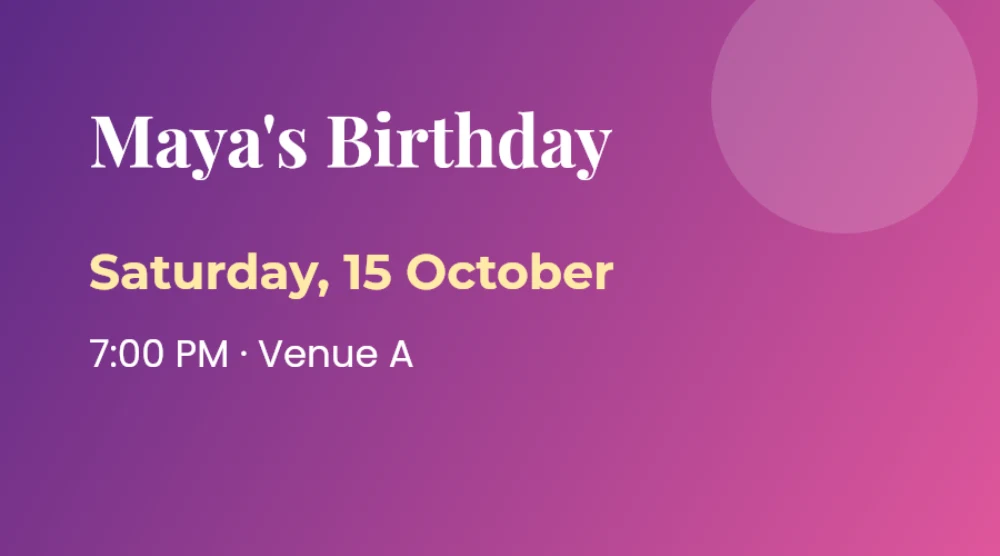
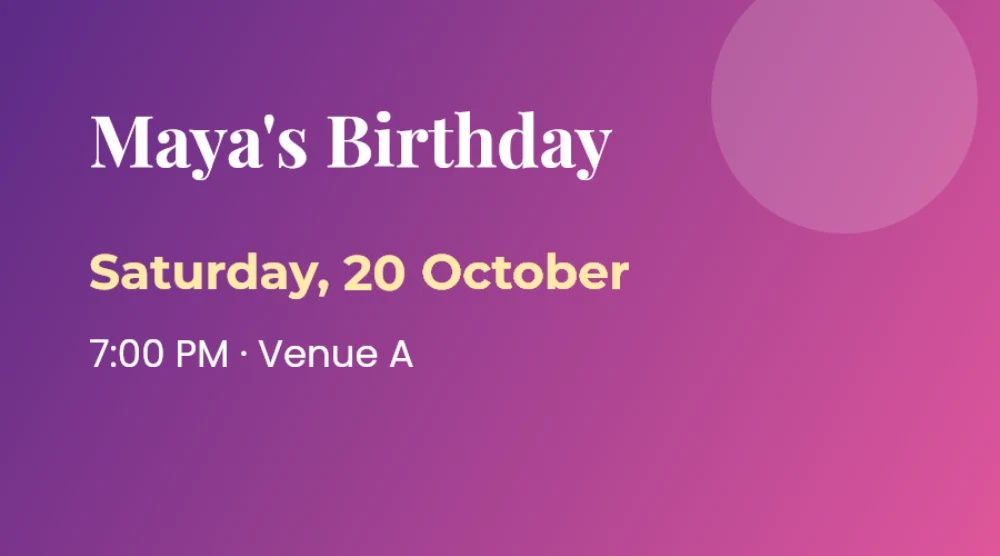
Why JPG text is hard to change
A JPEG is a flat photograph of your design. The letters are no longer text — they are coloured pixels blended into the background, and JPEG compression adds a halo of slightly different pixels around every edge. That is why simply painting over a word leaves a visible patch, and why typing on top never looks right.
Edit Any Text treats the problem the way a retoucher would, automatically: it finds exactly which pixels belong to the old letters (including that compression halo), rebuilds the background behind them from the surrounding area, and only then draws the new words in a font that matches the original.
Tips for the best JPEG result
- Use the largest version of the JPG you have. A photo forwarded through chat apps is usually compressed and smaller.
- If a word isn’t outlined, choose Select area and drag a box around it.
- Keep the new text close in length to the old text and the spacing stays natural; longer text pushes the following words along.
- Need a lossless copy? Save your edit, then convert it to PNG with any image tool — the edit itself is already at full quality.
What happens to JPEG quality
JPEG is a lossy format, so any program that saves a JPG — a phone gallery, Photoshop or this editor — encodes the whole picture again. Edit Any Text saves at 95% quality and the original pixel size. Pixels outside your edited words come straight from the original, and the re-encoding adds differences far too small to see.
What does show is repeated saving: editing the same JPG, downloading it, then editing the download again adds a little loss each round. Make all your changes in one session and download once. If you will keep editing the file later, convert the first download to PNG and work from that copy.
Private by design
Many JPGs are personal — invitations, family photos, screenshots of chats. The editor runs completely in your browser, so the image never leaves your device. Please edit only images you own or have permission to change.