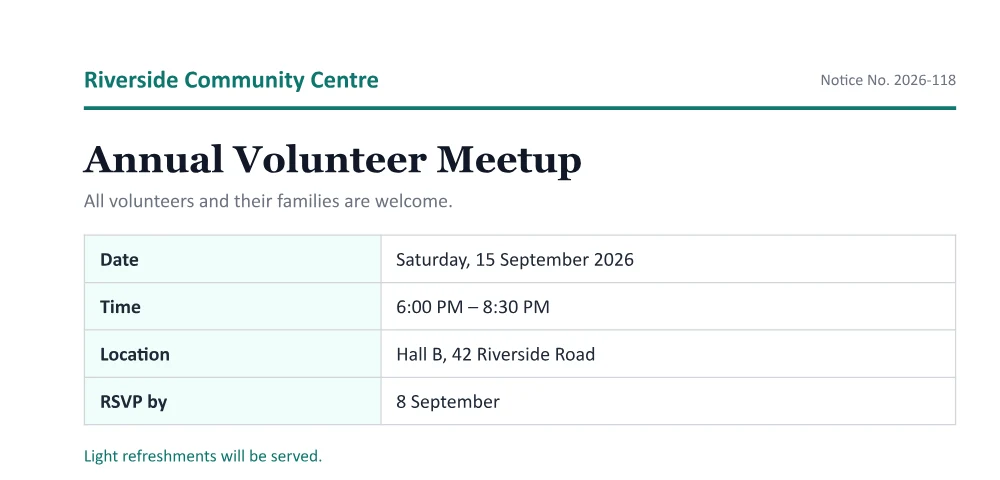
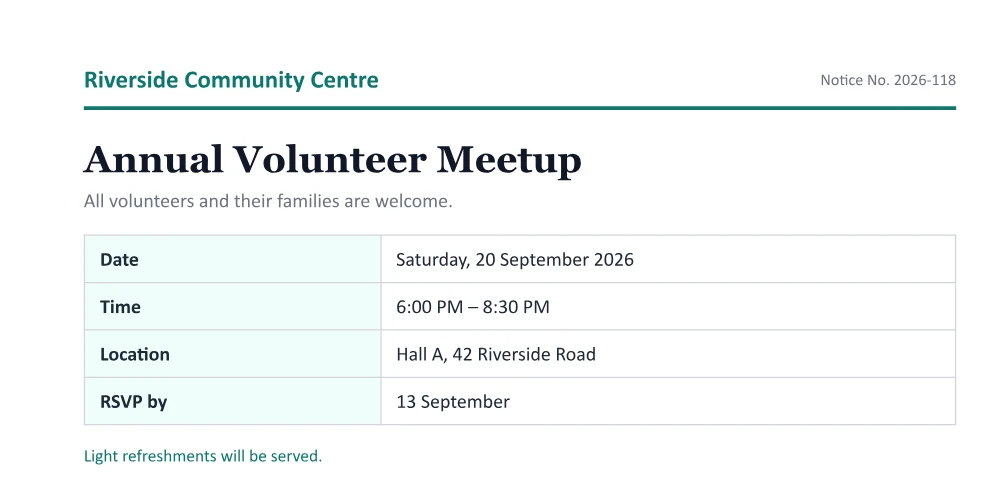
Updating dates without redoing the document
Dates are the most common thing people need to change in a finished PDF: an event moved, a deadline extended, a notice reissued for a new month. Re-creating the document for one date is a waste of time, and white-out tools leave a box over the page that you can see when printed.
Edit Any Text changes the date inside the PDF’s own text. Because PDFs embed the digits they use, and almost every document uses all ten, the new date is drawn with the very same font, at the same size and position, and the old date is gone from the file.
Good to know
- Month names may use letters that aren’t in the document; those words are drawn in the closest matching font, and the editor tells you when that happens.
- If the date is part of a scanned page, use Edit this page as an image.
- Dates in form fields can usually be changed in your PDF reader directly.
Checklist before you send the updated PDF
- Search the PDF (Ctrl+F in any reader) for the old date in every form it may appear — “12/03”, “12 March”, “Thursday” — including headers, footers and small print.
- Check that the weekday still matches: if “Thursday 12 March” becomes the 19th, it is still a Thursday, but the 20th is not.
- Update the dates that depend on it, such as “reply by”, “valid until” or a deadline a week before the event.
- Watch the order of day and month. 03/04 means 3 April in the UK and India but March 4 in the US; writing the month as a word avoids confusion for a mixed audience.
- If the file name contains the old date, rename the download before sending it.
- Open the downloaded file and zoom in on the changed line to compare it with the text around it.
Use it honestly
Change dates on your own notices, invitations, schedules and drafts. Changing dates on official, legal or financial documents to mislead anyone is fraud — please don’t use Edit Any Text for that.