Skip to content
Edit Any Text

PDF · Scanned PDF

Edit PDF text without changing the formatting

Change a date, a number or a typo directly inside your PDF. The new text uses the document’s own font, size and colour, and nothing else on the page moves.

Drop a PDF or image here

or paste a screenshot with Ctrl+V

Choose file

PDF, JPG, PNG, WEBP · up to 100 MB

How to edit text in a PDF

  1. 01

    Open the PDF

    Drop your PDF here. It is opened by your browser — nothing is uploaded.

  2. 02

    Click and retype

    Every editable line is highlighted. Click one and type the new text; the page preview updates as you type.

  3. 03

    Download the PDF

    Save the edited PDF. Everything you didn’t change is exactly as it was.

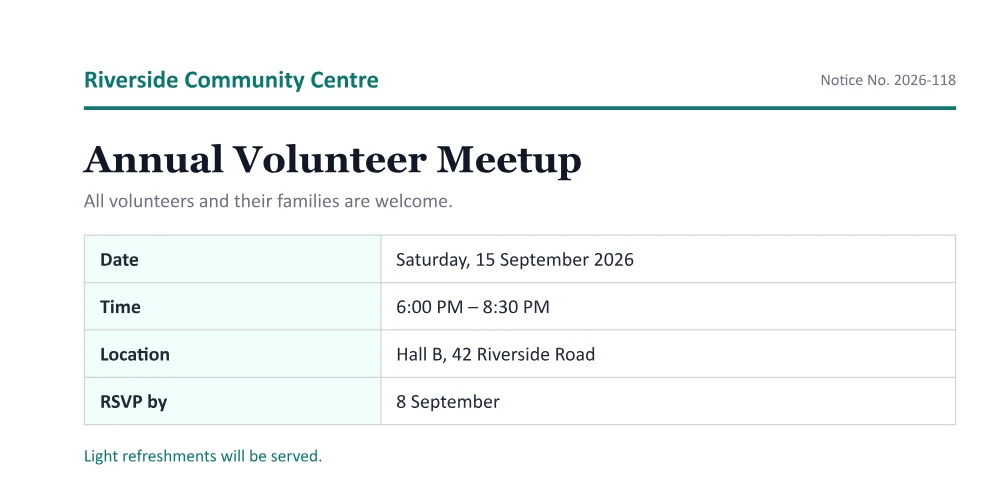
Original PDF

Original PDF: Edit PDF text without changing the formatting

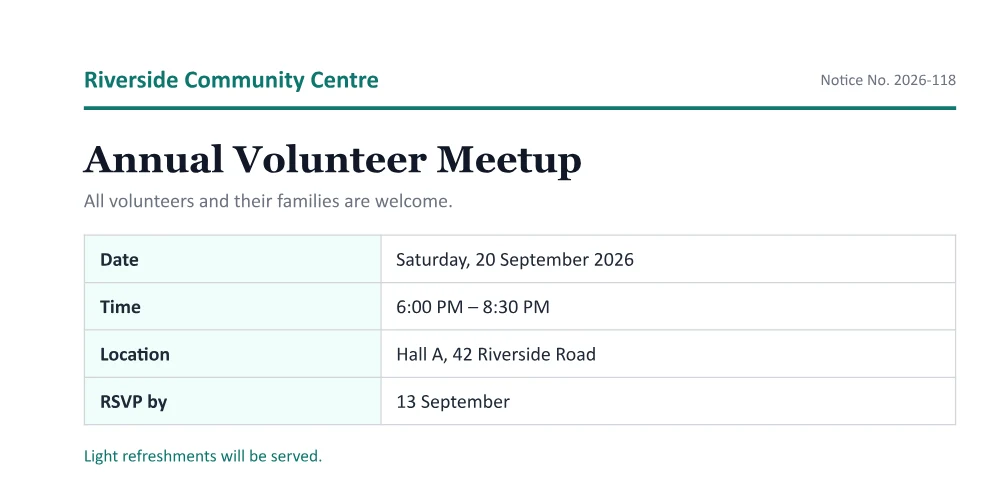
Edited PDF

Edited PDF: Date, hall and RSVP were rewritten with the PDF’s own font; the table, colours and branding are untouched.
Date, hall and RSVP were rewritten with the PDF’s own font; the table, colours and branding are untouched.

Real in-place PDF editing

Uses the original font

The new characters are written with the font embedded in the PDF, so they look exactly like the text around them.

Nothing else moves

Logos, tables, lines, images, links and other text stay byte-for-byte identical. No re-layout, no conversion.

Smart line reflow

If your new text is longer or shorter, the rest of the line slides along so words never overlap.

Alignment aware

Right-aligned amounts and centred titles can keep their alignment when their width changes.

Scanned pages too

Pages without real text are detected and can be edited as images, then saved back into the PDF.

Private and unlimited

No uploads, accounts, watermarks or hourly task limits. Edit as many PDFs as you need.

Editing in place vs converting

Edit Any TextPDF → Word converters & overlay editors
Edits the original text in placeYes — same font, size, colour and positionConverting to Word reflows the layout
Untouched text, tables, images and linksByte-for-byte unchangedOften re-rendered or lost
Scanned PDFsSupported (edited as an image)Often not supported
PDF uploaded to a serverNeverUsually yes

Edit the text in a PDF, not the whole document

PDF was designed so a document looks the same everywhere — which is exactly why it is awkward to change. The usual workarounds each have a cost. Converting the PDF to Word rebuilds every page, so fonts are substituted, lines break differently and tables shift. Many online editors simply paint a white box over the old text and type on top of it, which hides background colours and table lines and leaves the old words in the file.

Edit Any Text edits the PDF itself. When you change a line, the editor rewrites only the instruction that draws those characters. The page is not converted, re-rendered or flattened, so everything you did not change stays exactly as the author made it.

How in-place PDF text editing works

Inside a PDF, each piece of text is drawn by a small command that names a font, a size and a position. Edit Any Text reads these commands, groups them into lines you can click, and works out which characters you changed. Unchanged characters keep their original codes and spacing; only the changed characters are re-encoded — using the same embedded font whenever it contains the letters you typed.

Many PDFs embed only the letters they actually use (a “subset” font). If you type a letter that isn’t in the document, the changed words are drawn with the closest open-source font that has the same widths — for example Carlito for Calibri, Arimo for Arial or Tinos for Times New Roman — and the editor tells you when this happens. The text’s colour, size and position are kept, and the rest of the line is moved only if the new text is longer or shorter.

Common PDF edits

  • Change a date, time, address or reference number in a letter or notice
  • Fix a typo or a misspelled name in a certificate, brochure or menu
  • Update a price or quantity in your own price list or quote
  • Correct details in a form you have already filled in
  • Edit text on scanned pages using the built-in image editor

Free, private and fast

The whole editor runs inside your browser, so your PDF never leaves your computer or phone — useful for contracts, letters and internal documents. There are no sign-ups, watermarks or limits. Password-protected PDFs need their password removed first. Please only edit documents you own or are authorised to change; altering official, legal or financial documents to mislead anyone is illegal and not allowed.

Questions about editing PDF text

How do I edit text in a PDF without changing the formatting?

Open the PDF in Edit Any Text, click the highlighted line you want to change and type the new text. The editor rewrites only that text using the same font, size, colour and position, so the formatting of the rest of the document is unchanged.

Can I edit a PDF for free without Adobe Acrobat?

Yes. Edit Any Text edits existing PDF text directly in your browser, free and without installing anything.

Why does some edited text use a slightly different font?

Many PDFs only embed the letters that appear in the document. If you type a letter that isn’t embedded, the changed words use a metric-compatible open font (such as Carlito for Calibri). The editor shows a note when this happens.

Can I change a date or a number in a PDF?

Yes — this is the most common use. Digits are almost always embedded, so dates and numbers usually keep the exact original font.

Can I edit a scanned PDF?

Yes. Pages without real text are detected automatically. Click “Edit this page as an image” to change the text with the image editor; the edited page is then saved back into your PDF.

Does editing keep links, images and form fields?

Yes. Only the drawing commands of the text you change are rewritten. Images, vector graphics, links, bookmarks and form fields are kept.

Is my PDF uploaded?

No. The PDF is opened, edited and saved entirely inside your browser. It never reaches our servers.

Can I edit a password-protected PDF?

Encrypted PDFs can’t be edited until the password protection is removed. If you are allowed to, remove it in your PDF reader and open the file again.

Why can’t I click some text?

Text drawn as outlines or images, or text in rare font encodings, can’t be edited in place. If a whole page is a scan or a picture, use “Edit this page as an image”.

More tools